Troubleshooting
Issues with copy/paste in labs' Vim editor on Linux/Windows
We are aware of limitations with the copy/paste functionality on Linux and Windows when using the Vim editor
within a lab.
We request that you manually type for now until these are resolved and the Press to Type button works as intended.
Thanks!
Table of contents
- Common issues
Cannot connect to Docker daemonin Cloud IDE- I can't open my application in the browser in Cloud IDE
Port already in useerror when restarting server- I did not receive a grade or see completion marked for a lab I finished
- I don't know how to mark my lab as complete
Error occurred while trying to proxywhen accessing application- I can't change the model used in my chat in AI Classroom
- I can't download .ipynb in JupyterLite
- Lab not loading (loading sign is stagnant)
- Lab loaded but not working
- Kernel Status Unknown
- General troubleshooting
Common issues
Cannot connect to Docker daemon in Cloud IDE
If you are getting an error similar to the following when trying to run docker version:
Cannot connect to the Docker daemon at unix:///var/run/docker.sock. Is the docker daemon running?
You need to be using Cloud IDE with Kubernetes (which will appear in your command prompt as theiadocker)
instead of the regular Cloud IDE (which appears in your command prompt as "just" theia).
A good way to check if you're using the correct version of Cloud IDE is to check your command prompt
in the lab's terminal (which you can quickly launch using CTRL+SHIFT+` within the lab):
- If you see
theia@theia-[username], you are using the "regular" Cloud IDE ❌ - If you see
theiadocker@theia-[username], you are using Cloud IDE wth Kubernetes ✅
I can't open my application in the browser in Cloud IDE
Once your live-server or app is running, follow these steps:
-
Open the Skills Network Toolbox
- Look for the Skills Network icon (looks like a gray tree icon) at the bottom of the sidebar on the left side of the IDE.
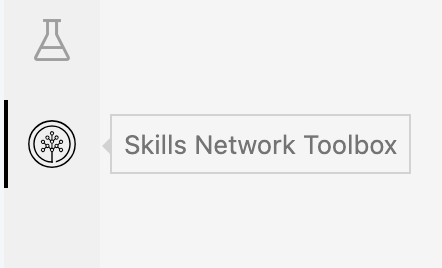
- Look for the Skills Network icon (looks like a gray tree icon) at the bottom of the sidebar on the left side of the IDE.
-
Launch Application
- Click on "Launch Application" tool.
-
Enter the Application Port
- In the "Application Port" field, enter the port number your application is running on (as given in your instructions).
-
Open the Application
- Click the "Your Application" button to open your app in the browser.
Tip: If your app doesn’t load, make sure your server is running and that you’ve entered the correct port number.
Port already in use error when restarting server
-
Kill the process occupying the port your server is trying to use using the following command:
kill -9 $(lsof -t -i :[YOUR SERVER'S PORT NUMBER])noteFor example, to kill the process using port 3000, you should run
kill -9 $(lsof -t -i :3000) -
Restart your server.
I did not receive a grade or see completion marked for a lab I finished
Please note that practice labs are ungraded and are hence not marked as completed (In Coursera "Ungraded App Items" will not be graded and may stay in the Results Pending state. These are practise labs and will not be graded.). If you're sure the lab was not for practice, then please submit a support ticket using Tai.
I don't know how to mark my lab as complete
Lab completion must be registered from your original Learning Management System (LMS), not from within the lab environment.
When you finish a lab:
- Do NOT look for a completion button inside the lab
- Return to your original course platform (the LMS you came from) to mark the lab as complete
Error occurred while trying to proxy when accessing application
If you encounter an error message like the following:
Error occurred while trying to proxy: [IP address]:[port]/- for example,
Error occurred while trying to proxy: 172.17.52.96:8888/
this error message indicates that the application you're trying to access is not running or is otherwise not accepting traffic. If the lab instructions instructed you to run a command to start your application, please confirm you've run the command and it was successful before trying to access your application.
I can't change the model used in my chat in AI Classroom
- Please note that in AI Classroom, you can't change the model used for a chat after you send your first message.
- To use a different model, you'll need to create a new chat.
I can't download .ipynb in JupyterLite
- Right-click (or option-click on mac) the notebook file in the file browser.
- Select "Download" from the context menu.
-e96a225d4ef4fb911b3db5ae460d2d8f.png)
Lab not loading (loading sign is stagnant)
If your lab appears to be stuck on a loading screen or the loading indicator (like the skills network tree) remains stagnant, try the following troubleshooting steps in order:
-
Refresh the page
- Press
F5orCtrl+R(Windows/Linux) /Cmd+R(Mac) to refresh the browser page
- Press
-
Clear browser cache and cookies
- Open your browser's developer tools (
F12orCtrl+Shift+I) - Right-click the refresh button and select "Empty Cache and Hard Reload"
- Or manually clear cookies and cache from your browser settings
- Open your browser's developer tools (
-
Try a different browser
- Switch to a different browser (Chrome, Firefox, Safari, Edge)
- Ensure you're using the latest version of the browser
-
Restart the lab
- Close the lab tab completely
- Return to your course platform
- Re-launch the lab from the original link
-
Check your internet connection
- Ensure you have a stable internet connection
- Try disabling VPN if you're using one
- Test your connection speed
-
Create a support ticket
- If none of the above steps work, the issue may be on our end
- Submit a support ticket with details about your browser, operating system, and the steps you've already tried
Lab loaded but not working
If your lab has loaded successfully but you're experiencing issues with functionality, tools not working, or unexpected behavior, try the following:
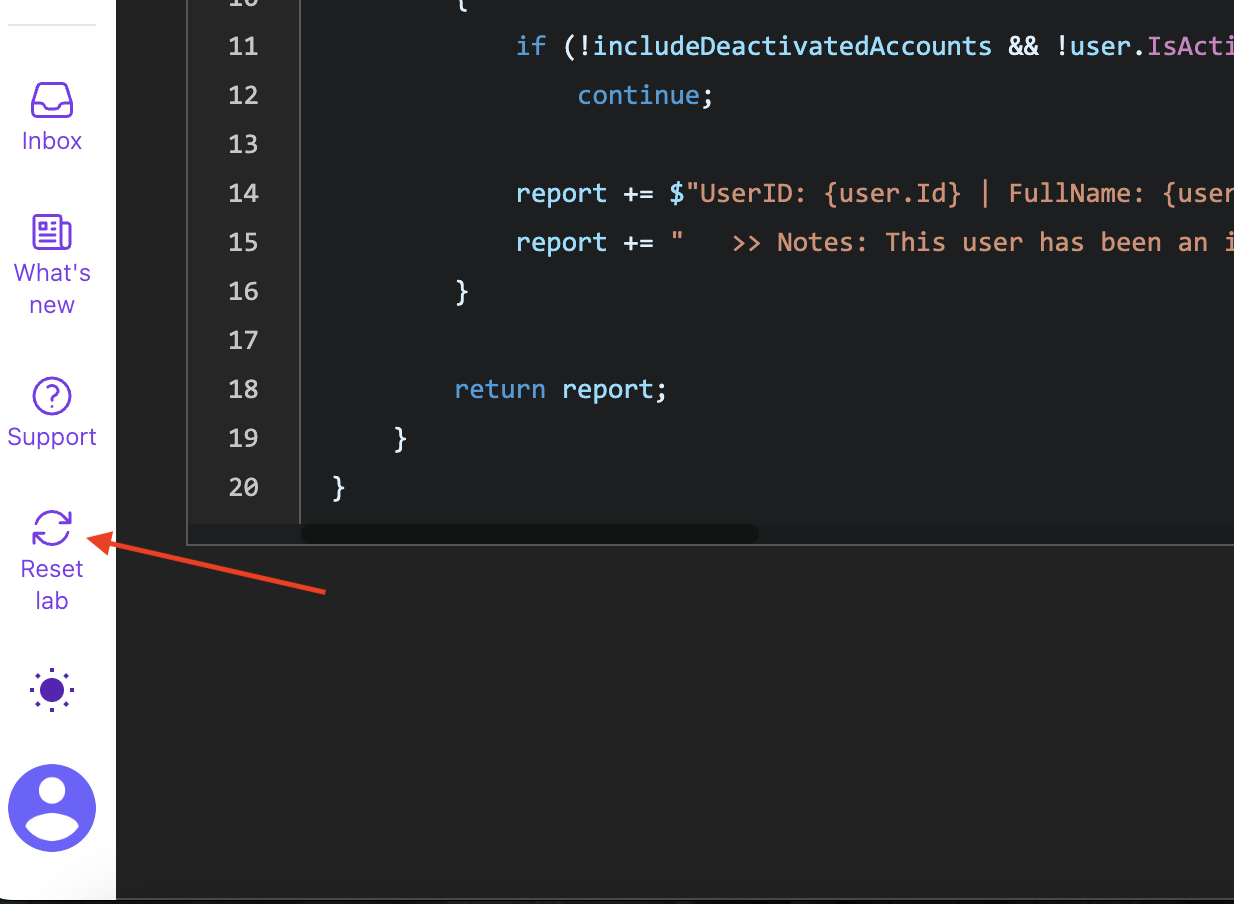
- Use the Reset Lab button
- Look for the Reset Lab button at the bottom left of your screen
- Click on it to reset your lab environment to a clean state
- This will clear any corrupted files or configurations that might be causing issues
- If the reset doesn't help
- Try the troubleshooting steps from the Lab not loading section above
- Contact support if the issue persists
Kernel Status Unknown
If the kernel status is unknown, then reset the kernel. To reset the kernel:
- In the Jupyter menu, navigate to
Kernel>Restart Kernel. If this doesn't resolve the issue, tryKernel>Kernal and Clear...orKernel>Restart Kernel and Run All.
General troubleshooting
Please first attempt to look up your issue in the Common Issues section above before trying the steps below or opening a support ticket.
General server errors
For other server-related errors:
- Simply refresh the entire page in your browser
- If the problem persists, try restarting your application from the terminal
- Otherwise, ask to open a support ticket
Application not loading
If your application fails to load or displays errors:
- Verify that you have completed all prerequisite steps in the lab instructions
- Check the terminal for any error messages
- Ensure all required dependencies are installed
- Restart your application and try again
- Otherwise, ask to open a support ticket
Problem with user session
If you encounter an issue within your lab session, reset the lab:
- Click the Reset Lab button at the bottom of the left menu bar for instructions on how to reset the lab.
- You will be instructed to Log out to complete the reset.
- After logging out, reopen the lab.